VR Experience
Immersive Learning
Discover the Digital Twin Technician’s World in VR
Step inside a virtual industrial workshop and explore the role of the Digital Twin Technician. Designed for Meta Quest 2, Meta Quest 3 and Meta Quest Pro, this immersive experience combines an industrial environment, educational videos and interactive elements to introduce the competences behind digital twins and smart manufacturing.
Explore a workshop featuring industrial machinery, a robotic arm and a Siemens PLC. Follow the introductory video, interact with the topics that appear around you and discover additional content at your own pace.
Download the application package, configuration file and video content below, and follow the installation guide to prepare your headset.
A compatible Meta Quest headset is required. Initial setup uses a Windows PC and a USB connection.
Files are hosted on Google Drive. If a preview is unavailable, select Download to save the file to your computer.
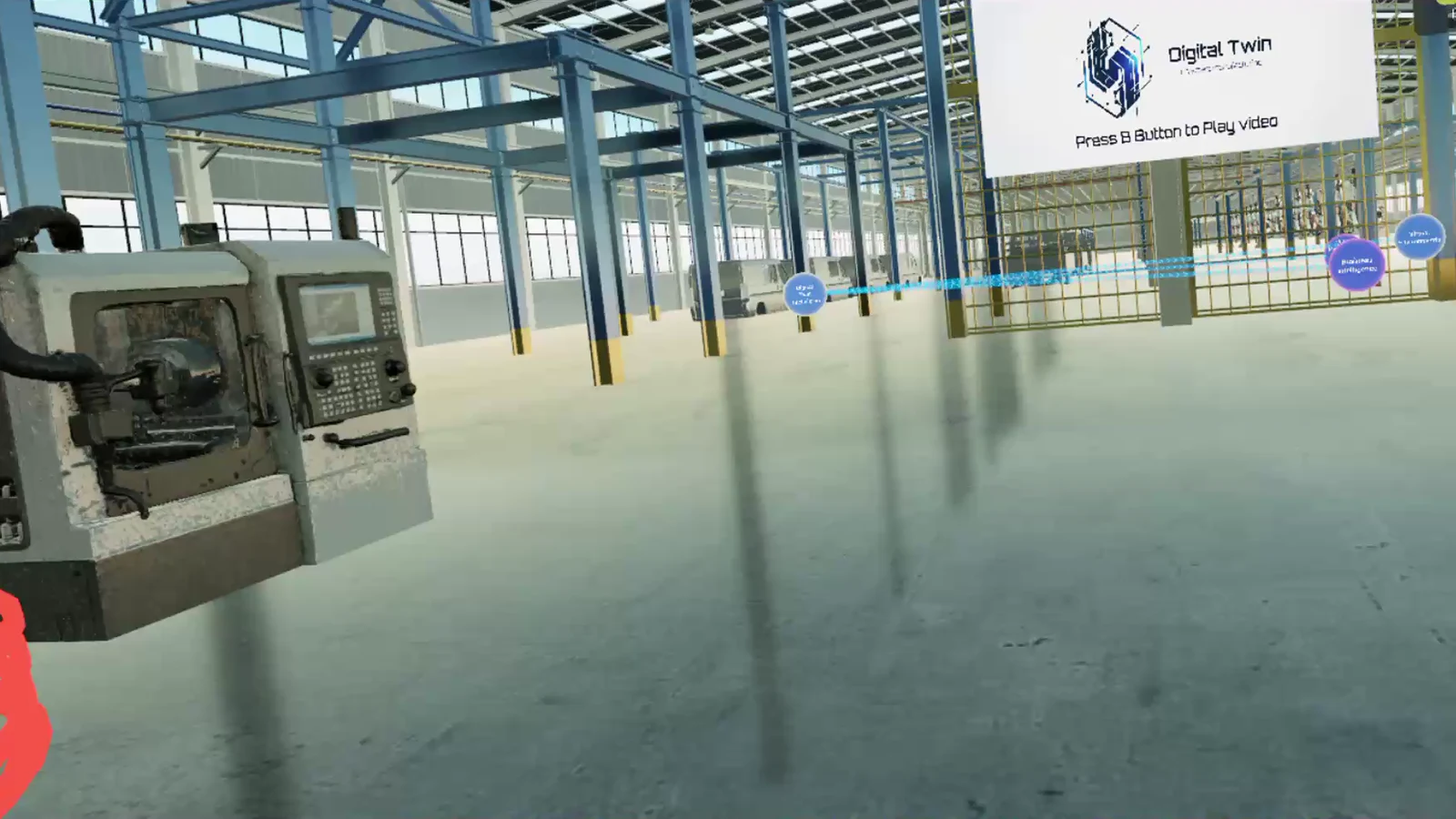
Virtual workshop 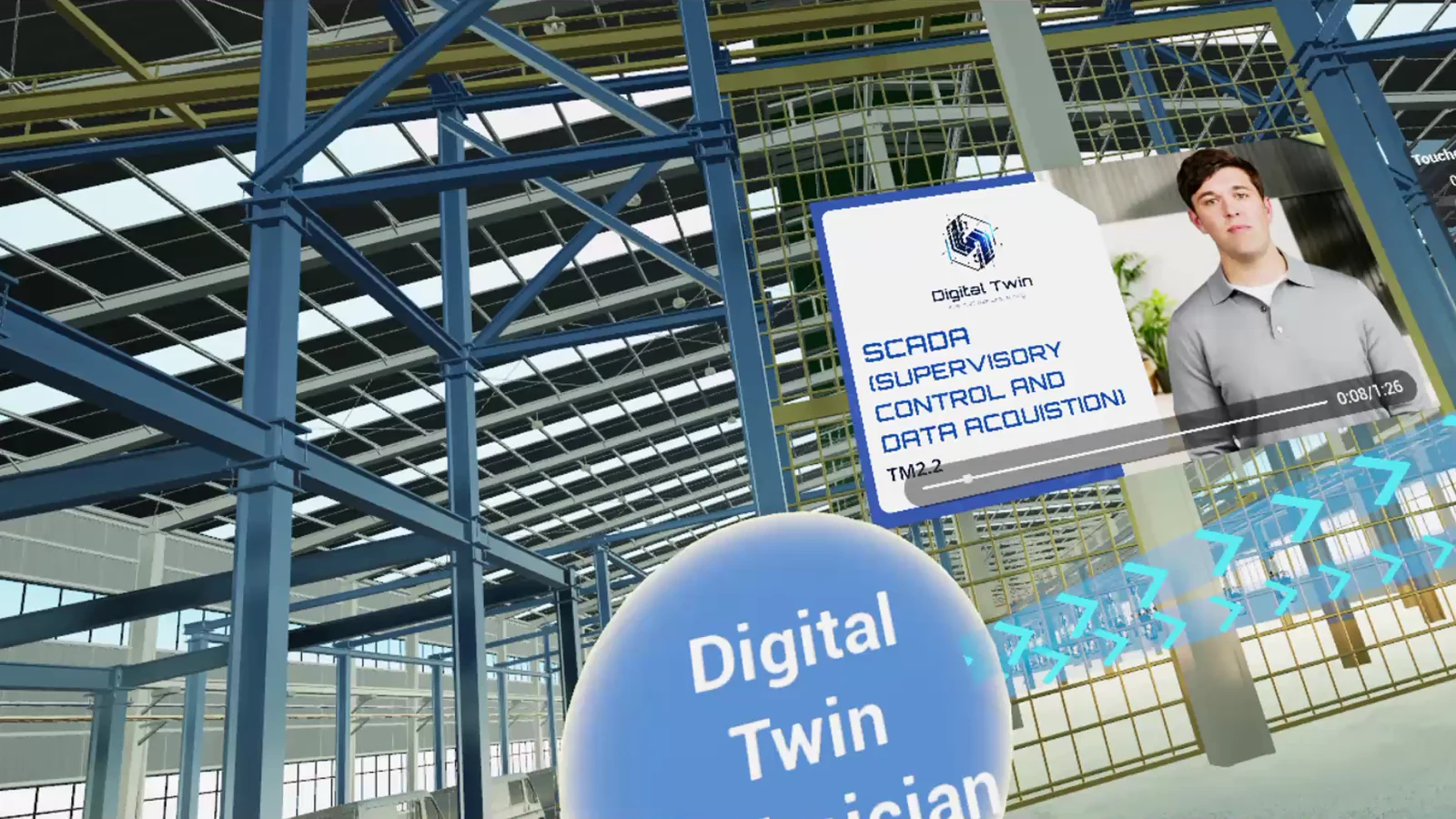
Video-based learning 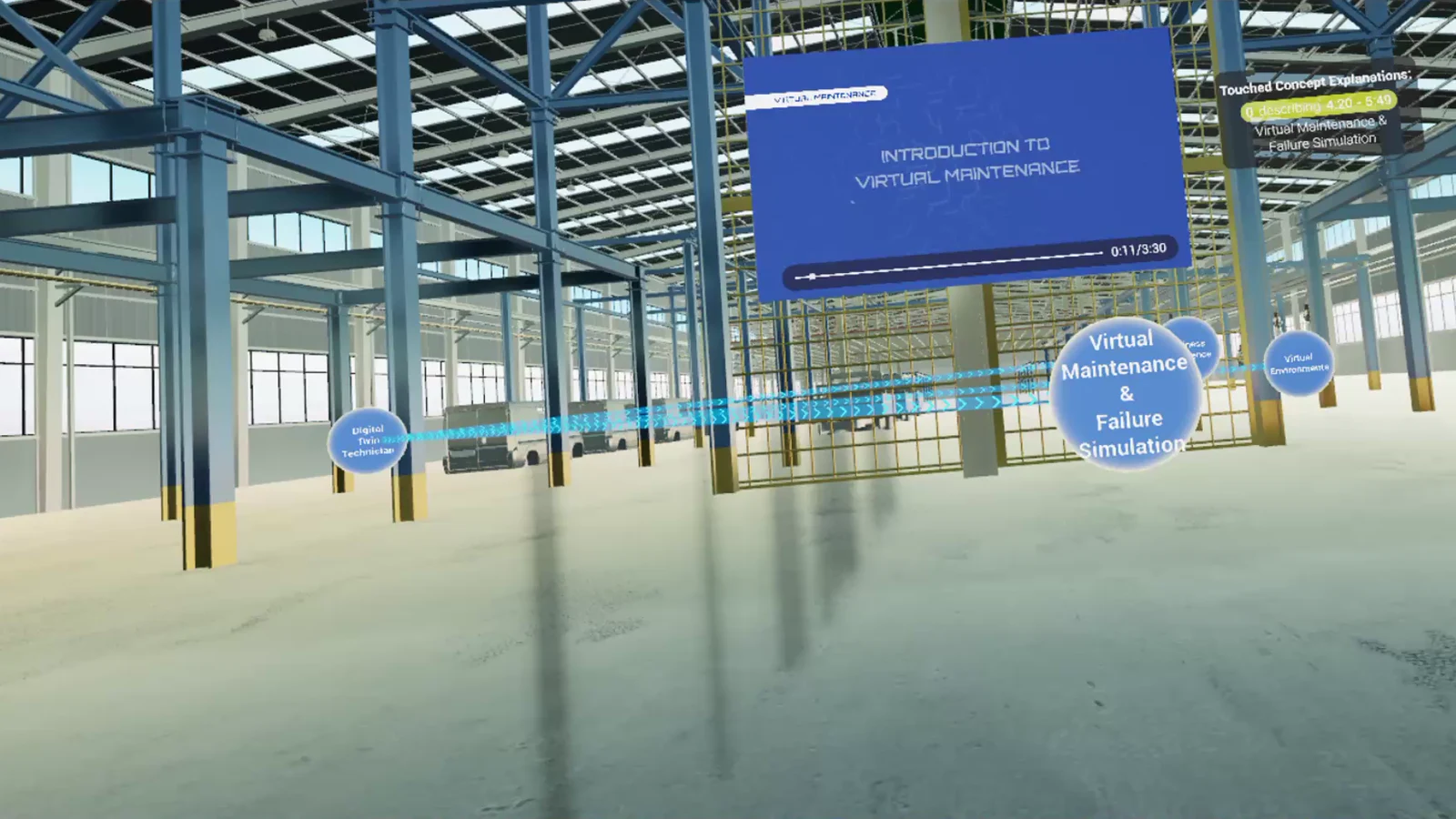
Interactive topics 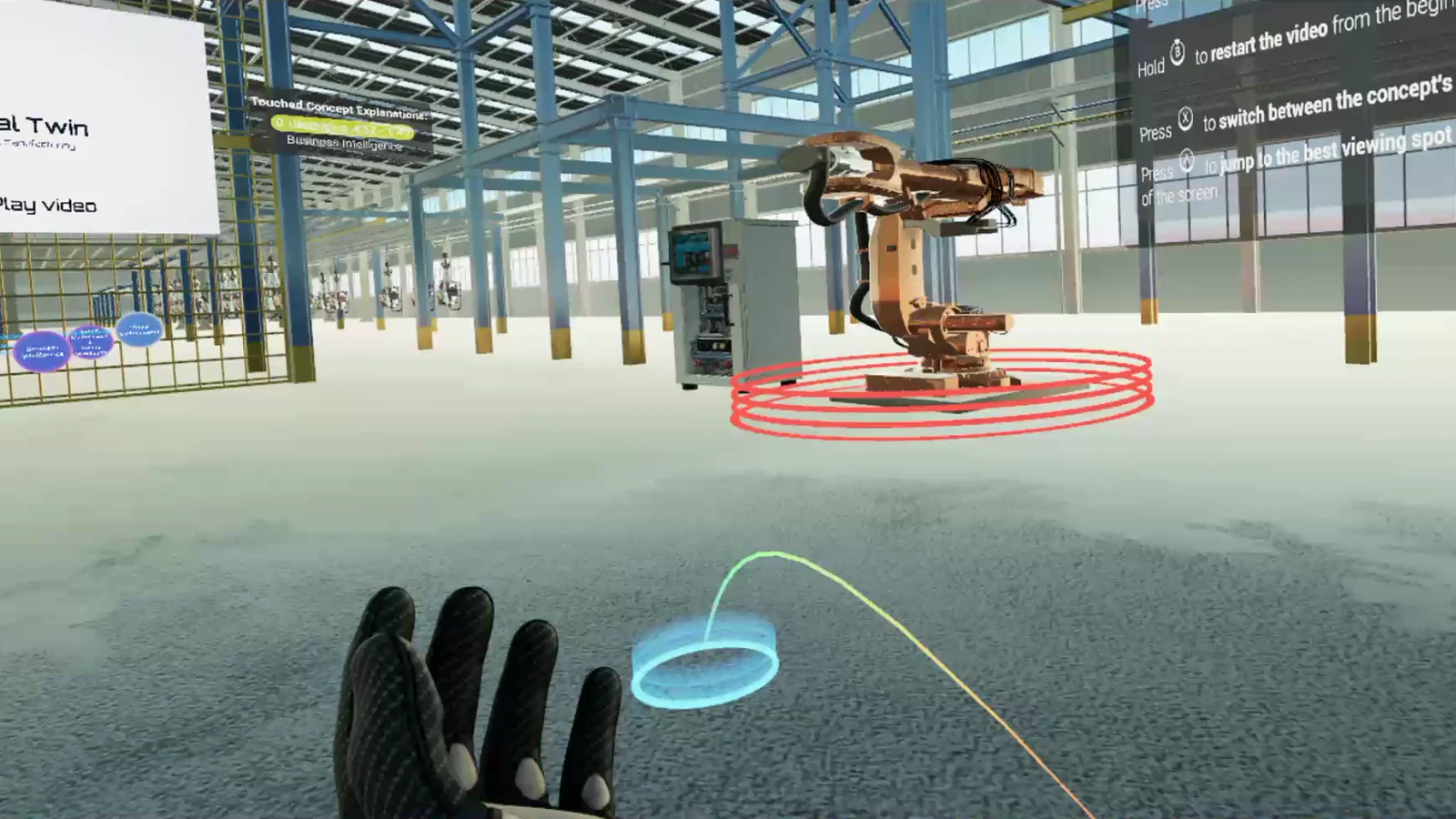
Robot interaction
Explore an Industrial Environment
Discover a virtual workshop equipped with industrial machinery, a robotic arm and automation technologies. Explore the setting as you learn about the Digital Twin Technician’s role.
Connect Skills with Key Concepts
Watch the introductory video and discover interactive spheres representing the topics it covers. Select a sphere to revisit the relevant section or explore additional video content.
Follow Your Own Learning Path
Move between topics according to your interests. Pause, revisit explanations and explore related content through a flexible experience that lets you set your own pace.
Getting Started
Your First Steps in the VR Experience
Prepare your headset, install the application and add the learning content. The installation guide provides detailed instructions for each stage.
Before you begin, you will need:
- A Meta Quest 2, Meta Quest 3 or Meta Quest Pro headset.
- A Windows PC and a USB cable suitable for connecting the headset.
- A Meta developer account with Developer Mode enabled for the headset.
- Android Debug Bridge (ADB), included in the Android SDK Platform Tools, on your PC.
- Sufficient free storage on your PC and headset for the application and video content.
If you are setting up the experience for a class or training session, ask your trainer or technical administrator to prepare the headset in advance.
Download and Prepare the Files
Download the application package, video content, configuration file (graph_example.json) and installation guide to your PC. Extract the archives and keep the supplied filenames and folder structure unchanged.
Connect and Prepare Your Headset
Follow the guide to enable Developer Mode and connect the headset to your PC. Put on the headset to approve the USB debugging request, then check the connection using ADB.
Install the Application and Add the Content
Follow the installation guide to install the application and grant the required permissions. Copy the configuration file and additional videos to your headset using the locations listed below. Complete the content setup before launching the full project learning experience.
Launch and Start Exploring
Open the headset’s application library and find EKEEL VR under Unknown Sources. Read the instruction panel and press the B button to start the main video. As interactive spheres appear, select them to explore the related topics.
Content file locations
Place the configuration file and additional videos in the following locations on your headset:
- Configuration file:
/sdcard/EKEEL_Files/Json/graph_example.json - Video folder:
/sdcard/EKEEL_Files/Movies/
Keep the filename graph_example.json exactly as provided, as the application uses this name to load the project-specific topics.
Useful Information
Your Questions Answered
Find practical information about the equipment, installation and controls before starting your VR experience.
